Community

How to use Community Planner

6-step quick start

From “let's plan a trip” to “everyone paid” — in 6 short steps

Scroll through each step below. Real screenshots, no jargon. Best on mobile too.

Step 1 — Create your eventStep 1
Step 1

Create your event

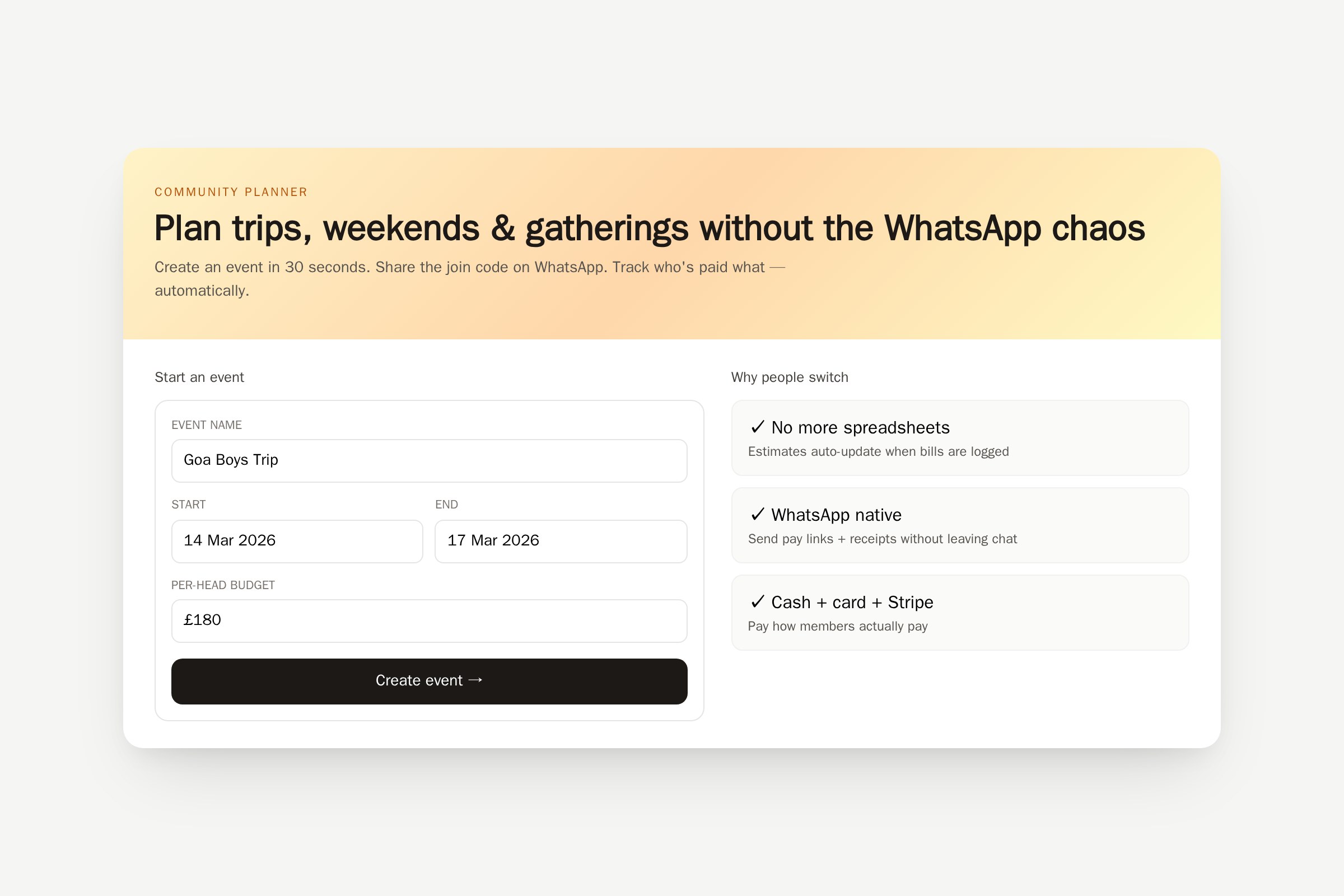
Sign in with Google → set name, dates, location, target per person. 30 seconds.

  • Go to Community Planner and tap “Sign in with Google”.
  • Set event name, dates, location and per-person target budget.
  • Save your 6-digit invite code — that's how members join.
Step 2 — Invite members on WhatsAppStep 2
Step 2

Invite members on WhatsApp

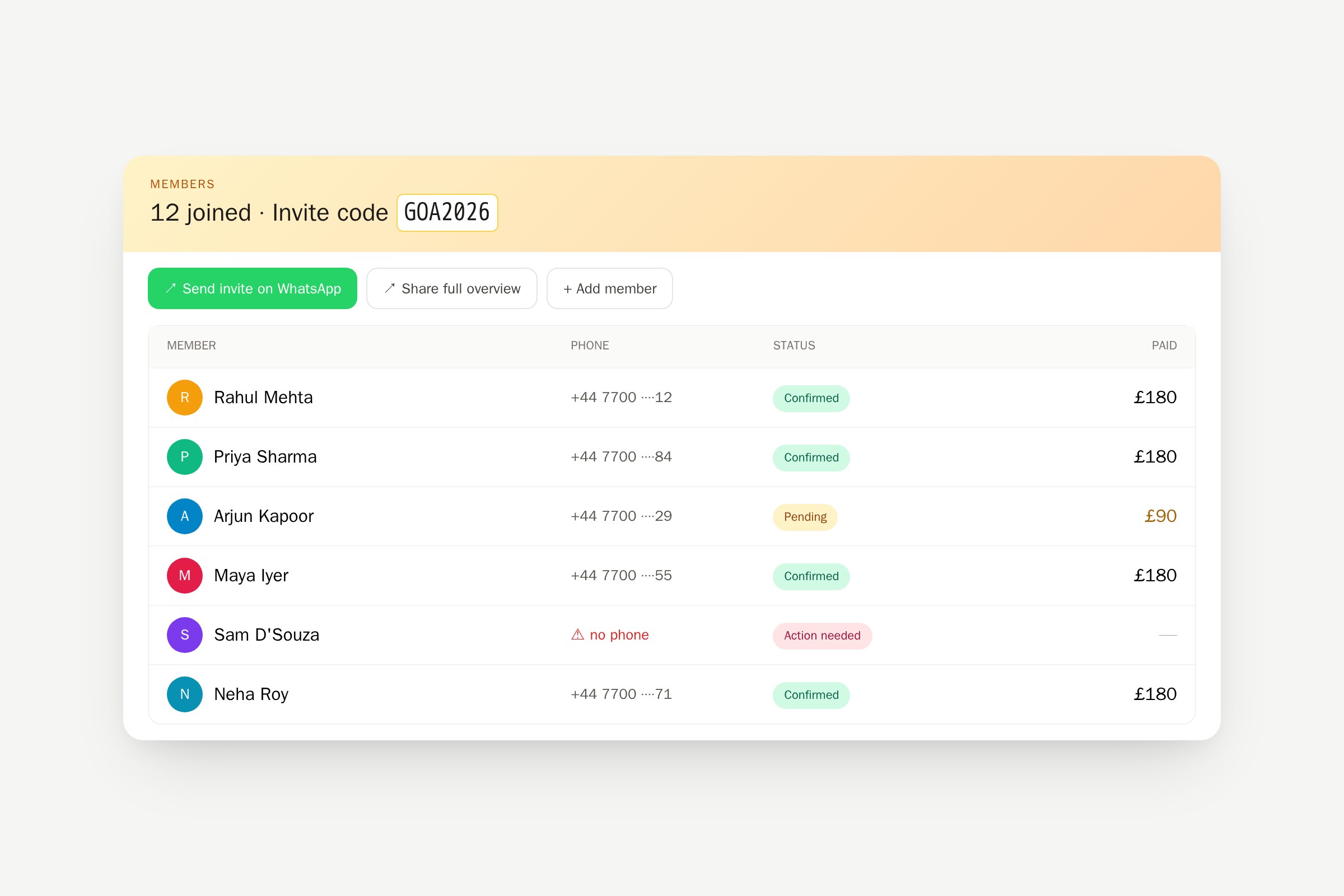
Tap WhatsApp on the planner header → message goes out with join link + invite code.

  • Top-right of the planner: tap “WhatsApp”.
  • Members tap the link → enter the 6-digit code → they're in.
  • If a member doesn't have a phone on file, the “Phone health check” banner will flag it for you to fix.
Step 3 — Plan items & assign peopleStep 3
Step 3

Plan items & assign people

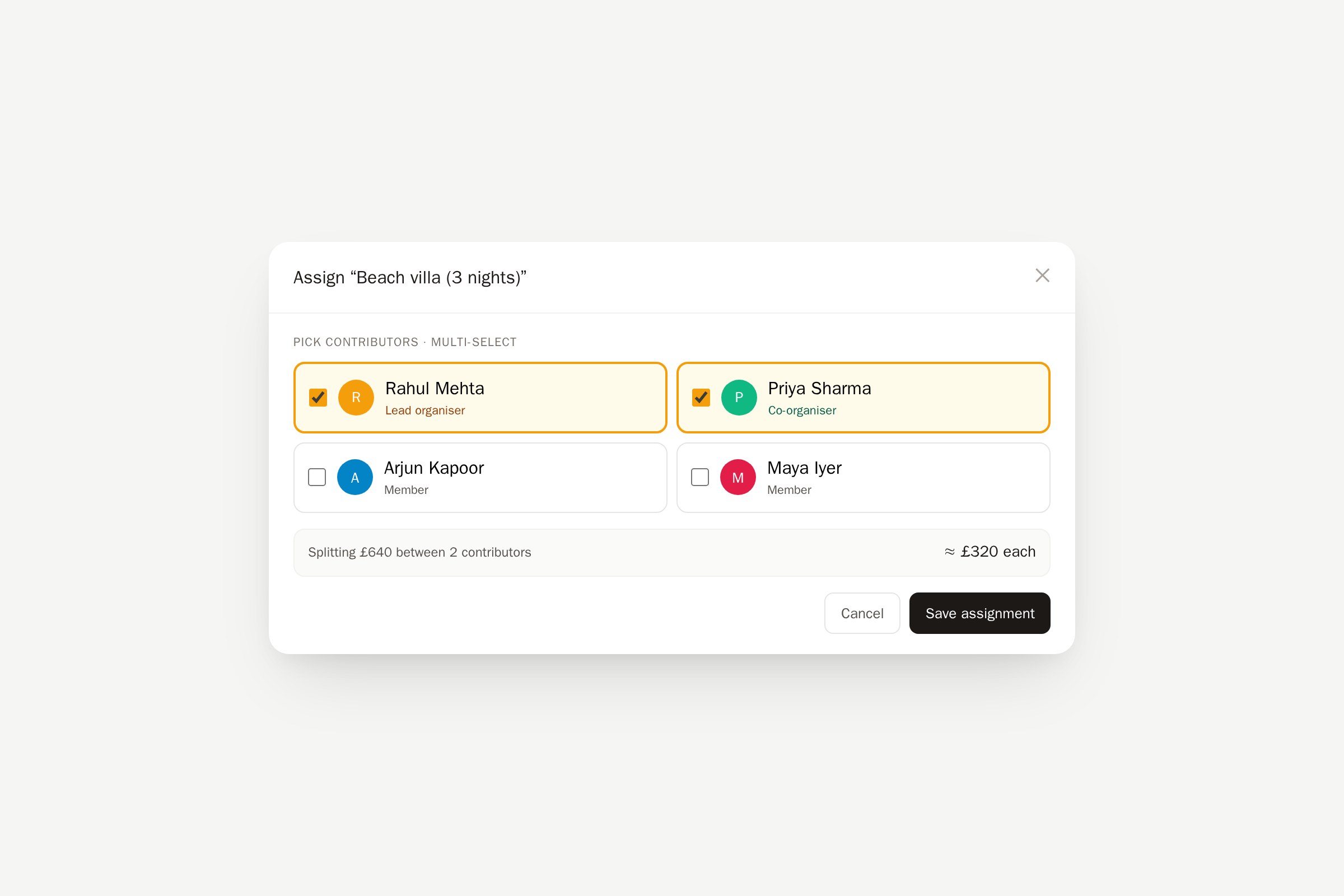
Add items to the Estimated Budget table → assign to members → use the filter to find who's getting what.

  • “Add item” → name, qty, estimated cost.
  • Tap a row → assign to one or more members.
  • Use the filter input top-right to search by item name or assignee.
Step 4 — Confirm with contributorsStep 4
Step 4

Confirm with contributors

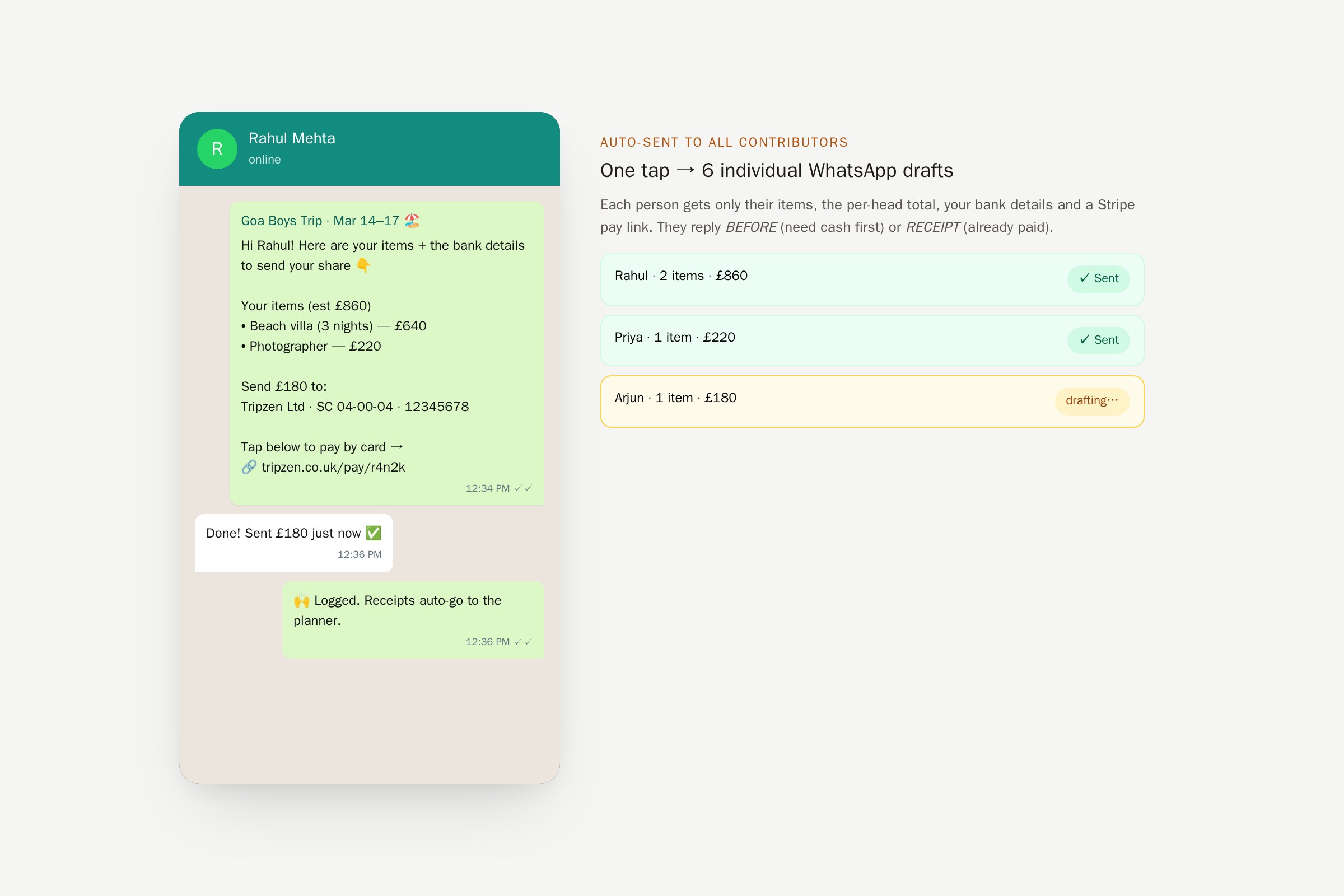
Tap “Confirm with contributors” → each person gets their item list on WhatsApp with two options.

  • “Confirm with contributors” button above the items table.
  • Each contributor gets: their items + est. total + your bank details.
  • They reply BEFORE (need money first) or send a RECEIPT after.
Step 5 — Log bills as receipts come inStep 5
Step 5

Log bills as receipts come in

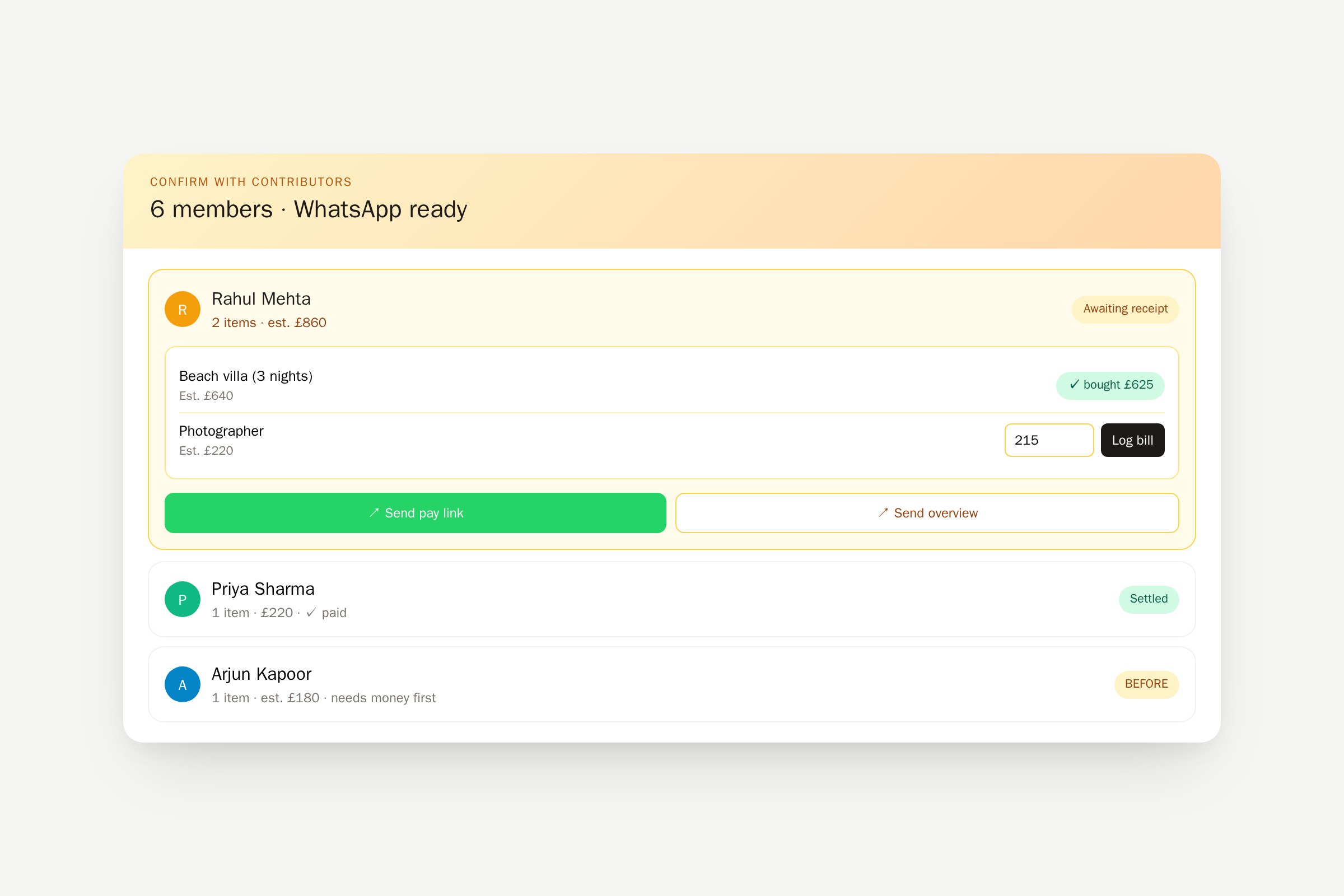
Inline “Log bill” inside the same modal — actual cost auto-replaces the estimate.

  • Open “Confirm with contributors” → expand a person.
  • Type the bill £ amount + note → tap “Log”.
  • The item flips to “bought” and your budget updates instantly.
Step 6 — Track contributions & cash on handStep 6
Step 6

Track contributions & cash on hand

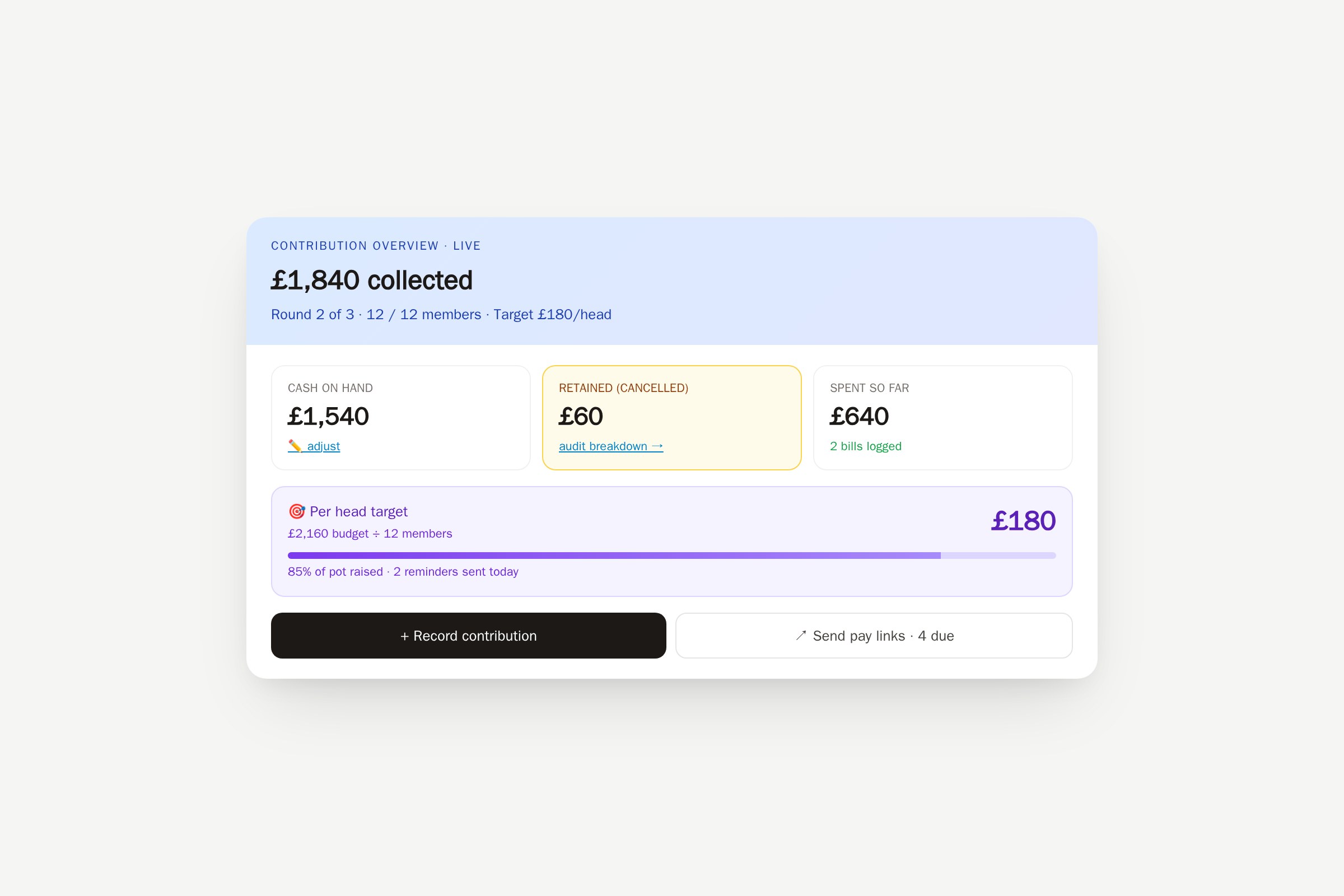
Contribution Overview card on the right shows pot, per-head, and live cash on hand.

  • “Record contribution” logs cash/bank transfers from members.
  • “Retained from cancelled” → click to audit + mark refunds.
  • “Cash on hand → edit” opens manual adjustments (bank fees, float, rounding).

Ready to run your own?

Pick a plan, set up your first event in 30 seconds.

    We use cookies to enhance your experience. Learn more